shopify / fulfillment / packing-slips
Shopify Packing Slips: Printing One and Editing the Template Are Different Jobs
Shopify packing slip: print one from the order, and edit the Liquid template under Shipping and delivery when the logo or fields should change.
A Shopify packing slip is the list that goes in the box. Printing one, and changing what every future slip looks like, are two jobs. Print lives on the order: Orders → the order → Print → Print packing slips. The template lives under Settings → Shipping and delivery → Documents → Packing slip template. The Print menu does not open the template. Saving the template does not print today’s order.
This page is the native slip. If you need invoices, pick lists, or a different document design, Shopify Help points to the Shopify Order Printer app, which has its own templates. Paths below are from Shopify Help, checked October 14, 2026.
Shopify packing slip in one paragraph (per Shopify Help, checked 2026-10-14): A packing slip lists the items in a package, plus shipping and billing addresses and product details such as SKU, weight, and quantity. The default slip does not show prices. Print it from the order (Print → Print packing slips). If an order ships in more than one shipment, print a separate slip for each. The look of every slip (logo, address line, product image) comes from a Liquid template under Settings → Shipping and delivery → Documents → Packing slip template. Editing that template does not print a slip, and printing a slip does not change the template. The address on that default slip comes from
shop_address(Shipping origin). Store name and contact details come from Settings → General.
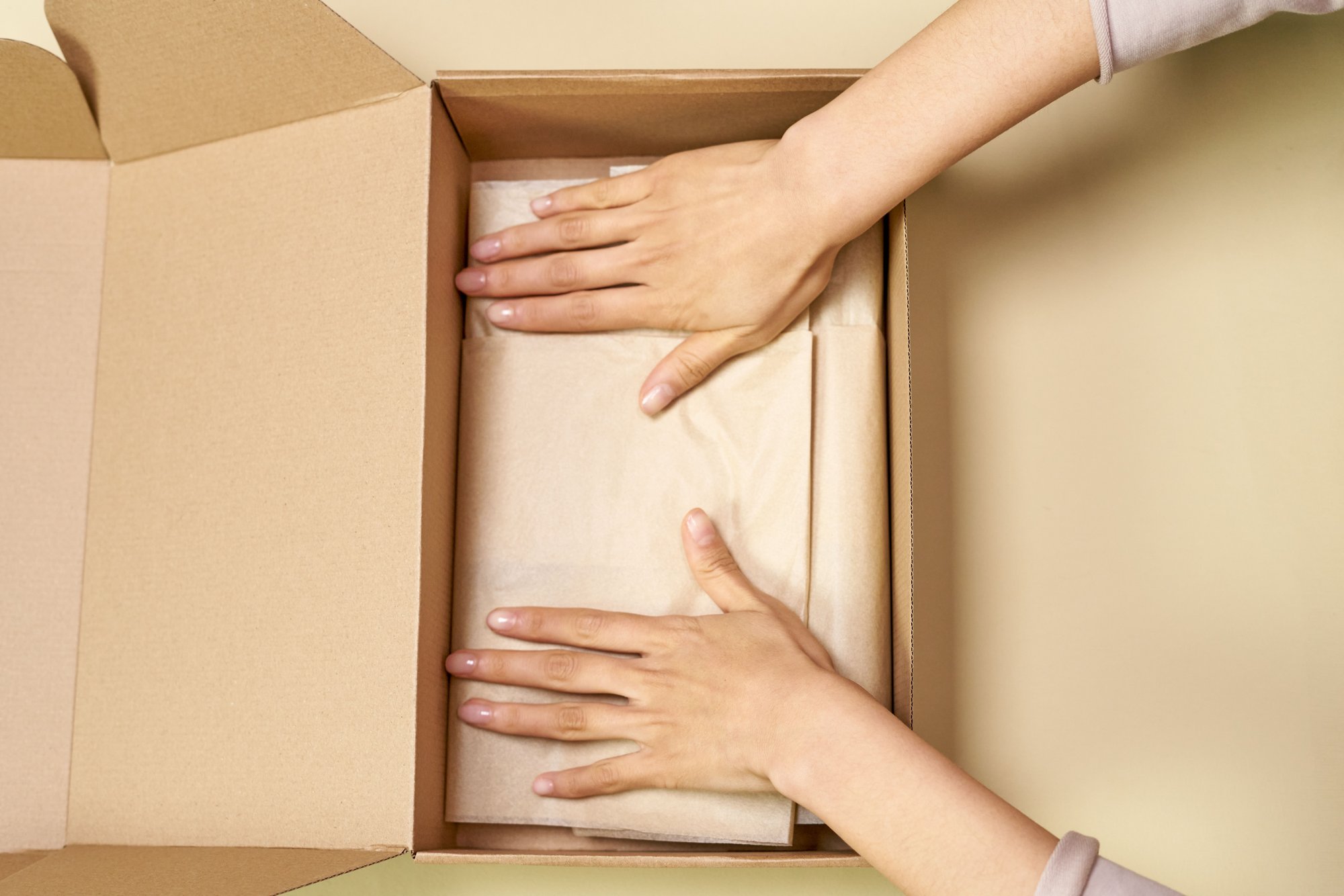
Putting the items in the box is the print job. The logo, the address line, and the fields that repeat on every slip are the template under Shipping and delivery.
Two jobs
| Job | Where | What you get | What you do not get |
|---|---|---|---|
| Print this shipment | Orders → the order → Print → Print packing slips | A slip for the items in that shipment | A new logo, or a different address, on every future slip |
| Change the template | Settings → Shipping and delivery → Documents → Packing slip template | Branding and fields on slips you print after you save | A printed slip for the order in front of you |
You can put Shopify’s template back from that same screen. Help calls the control Revert to default.
Print the slip for this shipment
Help’s Printing and editing packing slips page gives the single-order steps:
- From your Shopify admin, go to Orders.
- Click the order.
- Click Print → Print packing slips.
- Print or save the slip.
Packing slips include the items sent in a specific shipment. If the order has more than one shipment, print a separate slip for each.
To print several orders from the desktop Orders page:
- Select the orders.
- Click Print → Print packing slips.
- If you have multiple locations, select the location the orders are being fulfilled from, then Continue. Help labels that step optional.
- Print or save.
On the Shopify mobile app, press and hold an order to select several, then tap Print packing slips. If the selection spans locations, pick one and continue. On Android, Help says the slips are generated as a PDF you download and open before you print.
If you buy shipping labels in Shopify, Help says you can print those labels together with packing slips and customs forms. That is still a print action. It does not edit the template.
A draft order is not a printable order. Help’s Printing orders page says draft orders must be completed and converted to regular orders before they can be printed.
What the slip is listing
The default packing slip shows the items, SKU, quantity, and weight, but no prices. Shopify Help’s printing page lists shipping and billing addresses and product information such as SKU number, weight, and quantity. Prices can be added with Liquid.
The variable reference for this template names line_item.sku, line_item.quantity (the total quantity for that product), and line_item.shipping_quantity (the quantity being fulfilled in this shipment). It does not list a price field.
Help’s example of the two quantities prints as 2 of 5: shipping quantity of order quantity. That sample is Help’s, not a count from a store.
The items in this shipment are line_items_in_shipment. If you edit the template and you want this box rather than the whole order, loop that variable. includes_all_line_items_in_order is true when this shipment contains every item on the order. Help’s example for the other case:
{% unless includes_all_line_items_in_order %}
  There are other items from your order not included in this shipment.
{% endunless %}
If a line is part of a bundle or an add-on, line_item.groups is available. Help says group.deliverable? is true when the line is an add-on to a parent product, and false when the line is part of a bundle.
The rest of the documented fields, by where you change the source data:
- Store name and contact details (
shop.name,shop.email,shop.domain): Settings → General. The variable reference says you edit that store information on the General settings page. - The address printed on the default slip comes from
shop_address. The same page ties it to the Shipping origin section of Settings → Shipping and delivery. To print a different address on slips only, replace{{ shop_address.summary }}in the template. The customizing page shows that edit: delete the variable (or the longer address line, if that is what your template uses) and type the address you want. - Order number without a prefix (
order.order_number), the order name including any prefix or suffix from General settings (order.name; Help’s example is#1004), the order note (order.note), andorder.created_at. Use the date filter if you do not want the raw timestamp. - Customer first name, last name, full name, and email.
- Shipping address and billing address, including company, phone, and
summary.
Images on the slip have to come from https://cdn.myshopify.com/. Help says images from anywhere else are filtered out. Product thumbnails use line_item.image. A file you upload under Content → Files is allowed.
The template is where the logo goes
A logo is a template edit. There is no logo checkbox on the order. From the customizing page:
- Go to Content → Files and upload the logo.
- Note the file name, including the extension (
.pngor.jpg). - Go to Settings → Shipping and delivery.
- Under Documents, click Packing slip template.
- Place the file in the template. Help’s pattern is
{{ 'FILE NAME' | file_img_url: 'small' | img_tag: 'Logo' }}, with your file name in place ofFILE NAME. - Click Preview template, then Save.
The file name has to match exactly, including capitals. Help’s caution: Shop_Logo.png is not shop_logo.png.
Help documents three placements: the logo instead of the store name (replace the shop.name paragraph), the logo above the store name, or the logo beside it. The side-by-side version also adds a few CSS lines so the image and the name share a line. Use the customizing page for those three snippets. The same page shows the line_item.image block to delete if you do not want product thumbnails.
You can style the slip with CSS. The stylesheet has to be uploaded to Shopify. Help says CSS hosted outside Shopify will not render.
What does not change the slip
The shipping policy page does not. That page is the written promise: what you ship, what you do not, and how long you say it takes. It lives under Settings → Policies. It does not fill packing-slip fields. Shopify shipping policy covers that page, and why it also does not set the rate checkout charges. The address on the slip comes from the store-address variables, or from text you typed into the template.
An inventory report does not list the box either. Those reports count what you had, what sold, and how counts were adjusted. Shopify inventory reports is that job.
A packing-slip app is a different product from this template. Nothing here installs one. Shopify Order Printer, linked above, is Shopify’s own app for other documents, and it uses a different editor.
Do this in order
- Open an order that already has a shipment and print one slip. Read the quantities against the box.
- If the order ships in more than one package, print a slip for each shipment.
- If every slip needs a logo, a different address, or no product image, edit the template, preview it, and save. Print one more slip and check that the change is there.
- Leave the shipping policy and the inventory reports alone. They will not update the slip.
FAQ
Where do I print a Shopify packing slip?
Orders → the order → Print → Print packing slips. For several orders, select them on the Orders page and use the same Print action. Pick a location first when the selection covers more than one.
Where is the Shopify packing slip template?
Settings → Shipping and delivery → Documents → Packing slip template. It is Liquid. Revert to default puts Shopify’s template back.
Does the shipping policy control the packing slip?
No. The policy page and the slip template are different settings. Saving the policy does not change the slip.
Can I print a packing slip for a draft order?
Not while it is still a draft. Help says draft orders must be completed and converted to regular orders before they can be printed.
Sources
- Shopify Help — Printing and editing packing slips (checked 2026-10-14)
- Shopify Help — Customizing packing slips (checked 2026-10-14)
- Shopify Help — Packing slip variable reference (checked 2026-10-14)
- Shopify Help — Printing orders (checked 2026-10-14)
- Shopify Help — Shopify Order Printer (checked 2026-10-14)