
shopify / checkout / conversion
Shopify Checkout Optimization: Fix Friction Before You Offer a Discount
Audit your Shopify checkout in order: delivery costs, mobile forms, payment options, discount errors, and event evidence. Build a prioritized test checklist.
For Shopify merchants, checkout optimization starts with testing your store’s total costs and delivery promises, then mobile guest checkout and payment forms. Use your Shopify admin to verify settings, reproduce discount-code and payment failures, and record each fault with a retest condition before deciding whether an offer belongs in the fix.

Checkout optimization starts where money changes hands: clear totals, working payments, and a path a guest can finish.
What should you inspect first?
Follow the purchase path: product page, cart, then checkout. Shopify’s checkout optimization guide covers cost transparency and guest checkout alongside forms and payment options. The diagnostic job is to find where your own store’s promise or functionality breaks.
Keep these observations separate:
| Observation | What it tells you | What it doesn’t establish |
|---|---|---|
| Cart abandonment | A shopper added an item but didn’t complete a purchase in the period you’re measuring. | That they reached checkout or encountered an error. |
| Checkout abandonment | A shopper began checkout but didn’t complete it in that period. | Why they stopped. |
| Checkout friction | An obstacle made a purchase harder: an unclear delivery promise, a blocked field, or a failed payment, for example. | That the shopper necessarily abandoned the purchase. |
| Invalid discount-code event | An attempted code was rejected in that checkout context. | That the code caused abandonment or that a replacement discount is appropriate. |
Before changing settings, choose an in-stock cart and representative delivery addresses for the markets you serve. Record the device/browser, entry route, customer sign-in state, and cart contents. Repeat those conditions after a change so you can compare the same purchase attempt.
1. Compare the delivery promise with the checkout total
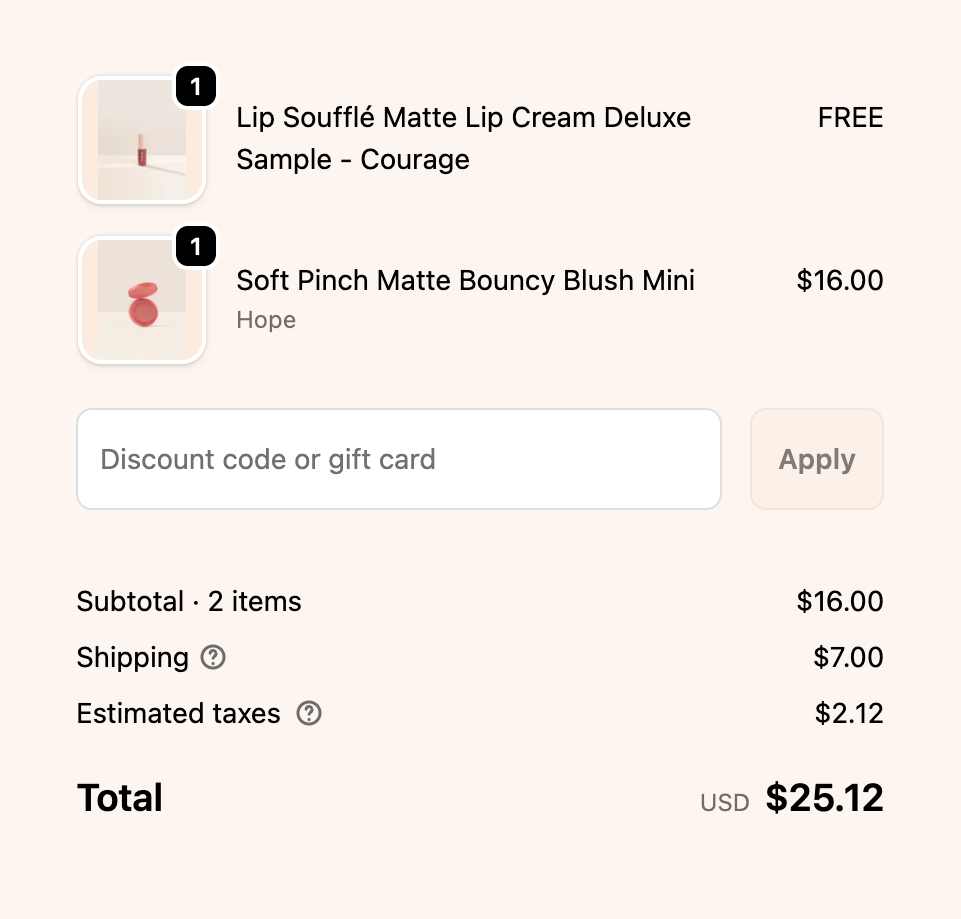
Compare what the product page promised with the shipping line and total the customer sees before they pay.
What can go wrong: The product page says free shipping, but the cart doesn’t qualify. A delivery estimate leaves out processing time. A return policy exists somewhere, just not where a customer would look before paying. Checkout isn’t an ideal venue for a plot twist.
Verify: Start on a product page and write down what a customer can learn about shipping cost, delivery timing, return eligibility, and return postage. Then take that product through checkout using an address you actually serve.
Compare the displayed subtotal and shipping charge with any tax or duty information shown. If a charge depends on location, explain that dependency before checkout rather than promising a universal total. Check that the delivery wording accounts for preparation as well as transit, and that exclusions match your actual policy.
Inspect the shipping setup for the product and destination. Shopify is moving stores gradually from shipping profiles and rates to shipping options by market, so use the setup present in your admin; the current shipping-rate guidance explains the transition. Try a cart below and above any advertised free-shipping threshold. Include a mixed-product cart if products ship under different rules.
In Settings > Policies, check that your published shipping and return policies match the offer. Shopify links added policies in the checkout footer. Open those links on a phone, and make essential delivery and return information available earlier in the store too.
A valid but expensive shipping rate is a pricing decision. No rate for a destination you promise to serve is a configuration problem. Record which one you found.
2. Walk through mobile checkout as a guest
What can go wrong: Your own saved account hides a sign-in requirement. A cart drawer button is covered by a popup. The mobile keyboard obscures an error that looked obvious on desktop.
Verify: On a real phone, start a fresh browser session while signed out of the store. Follow the normal product-to-cart route without relying on saved customer details. Try correcting an address and returning to the cart to change quantity. Check that the updated contents and total carry forward.
For a consumer store that should accept guest purchases, open Settings > Checkout > Customer contact method and inspect Require customers to sign in to their account before checkout. Leave it off unless sign-in is a deliberate requirement for your business. Shopify’s checkout form documentation also notes that requiring sign-in hides accelerated checkout options such as Apple Pay in the online store cart.
Don’t make a particular “Continue as guest” button your pass condition. The useful test is whether a new shopper can proceed without being forced to sign in. Check the actual path your configuration presents.
3. Test express payment and manual address entry
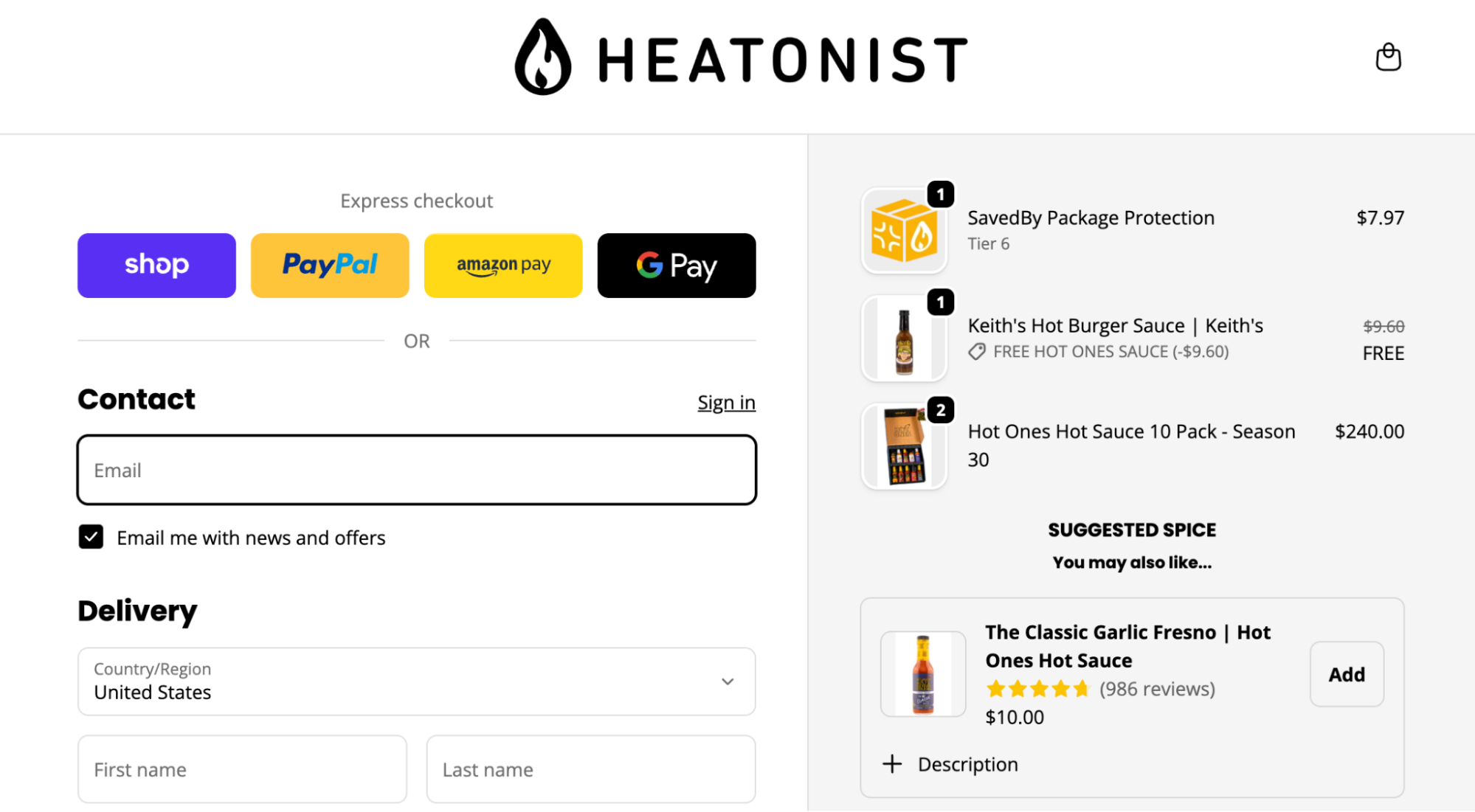
Test both express wallets and the manual address path—a saved wallet can hide a form problem apartment shoppers still hit.
What can go wrong: A saved wallet address masks an awkward manual form. An unnecessary company field becomes a requirement. An apartment customer can’t provide a unit number.
Verify: Inspect your enabled payment methods in Settings > Payments, then test the relevant express route on a compatible device and account. Also complete the standard entry route. A wallet option missing from one browser isn’t enough evidence that your store’s configuration is broken.
Accelerated checkout buttons can send customers directly from a product page to checkout. If you use them, check that customers taking that route still encounter the information they need; a notice shown only in the cart won’t help someone who skips it.
Under Settings > Checkout > Customer information, justify each optional field you’ve made required. Keep fields your carrier or payment provider needs. Shopify documents that requiring company name can hide some accelerated payment options, and that either requiring or removing address line 2 can prevent some customers from proceeding. Review those field constraints before shortening the form.
Test an address suggestion, then correct it manually. Try an apartment address as well. Shopify’s address collection guidance distinguishes autocompletion from validation and lists coverage limits. Missing suggestions in an unsupported country shouldn’t be mistaken for a broken checkout.
If you use an address-validation app, check whether it duplicates Shopify’s validation prompts. Record the conflicting behavior before changing either control.
4. Separate a discount-field problem from a rejected code
What can go wrong: A customer can’t find where to apply an advertised offer. Or the field works, but the cart doesn’t meet the offer’s rules. Those require different fixes.
Verify: Follow an active promotion from its landing page into checkout. Find the discount entry control on mobile as well as desktop, including within a collapsed order summary if that’s where your checkout puts it.
Use an active code with a cart that qualifies. Then test an intentionally ineligible cart and record the exact rejection message. These are tests to run, not evidence that either path is currently broken.
In Discounts, compare the promotion’s wording with its dates, eligibility, purchase requirements, and combination rules. If the rejection is correct, fix misleading promotion copy. If a qualifying cart fails, use the detailed guide to diagnosing a Shopify discount code that isn’t working.
Keep a code rejection separate from a payment failure in your notes. A shopper revisiting the discount field doesn’t establish either event, and a new discount won’t repair a field they can’t use.
5. Isolate theme and app changes
What can go wrong: A cart app changes the route into checkout, or a checkout extension introduces a failing field. Changing the theme and several apps together leaves you guessing which change mattered.
Verify: Record when the problem began and compare that with recent configuration changes. Reproduce it with the same cart and customer state. Where previews are available, compare the relevant change in a draft configuration or theme preview; confirm which environment the test actually reaches.
Use the right editing surface. Shopify’s checkout customization documentation places the checkout and accounts editor separately from the theme editor. Standard customization is available on Basic and higher plans; eligible apps that customize information, shipping, and payment pages require Shopify Plus.
For an app-related fault, test one change at a time and keep a record of the original setting. If preview can’t reproduce it, give the app developer the affected route and steps before removing functionality from the live store. Removing a delivery control could create a different problem while hiding the first one.
6. Read payment failures before changing the offer
What can go wrong: A failed payment is filed under “customer changed their mind.” Or a successful-looking wallet interaction is treated as a completed order without checking the order record.
Verify: In Orders > Abandoned checkouts, open the relevant checkout and expand its Timeline payment event. Shopify documents this path under viewing payment events from an abandoned checkout. For a completed payment, inspect the order’s Timeline instead.
Record the payment method and timestamp alongside the message. Follow the reason supplied by the provider: a billing-detail correction and a technical processing error need different responses. If the message doesn’t explain the failure, send the provider or Shopify Support the checkout reference through their support channel. Don’t ask customers to email card details.
For a controlled retest, follow Shopify’s test-order instructions. Payment-provider test mode prevents customers from placing live orders while it’s active, so arrange the test window and restore normal processing afterward. A real payment followed by a refund can incur processor fees.
7. Check what your checkout events actually prove
What can go wrong: Your report labels a missing purchase event as “price resistance,” even though it contains no record of a price objection. Or repeated submissions get counted as separate customers.
Verify: Ask the person responsible for your analytics which events are collected and confirm them during a controlled checkout. Shopify defines standard checkout events, including:
| Event | What it records | How to use it in the inspection |
|---|---|---|
checkout_started |
Checkout began. | Establish that the shopper reached checkout. |
checkout_shipping_info_submitted |
A shipping rate was selected. | Identify a stage to investigate; it doesn’t prove satisfaction with the rate. |
payment_info_submitted |
Payment information was submitted. | Compare with payment records; submission isn’t approval. |
checkout_completed |
A purchase was completed. | Compare your recorded events with order records when the counts disagree. |
Event definitions don’t mean your analytics tool already collects them correctly. Verify tracking coverage and consent behavior before interpreting missing events. Compare the same device and market, and check how the tool handles retries and repeat visits.
Neither a generic checkout event nor an abandoned-checkout record establishes an invalid discount-code attempt. That diagnosis needs a reproduced rejection or instrumentation that specifically records it.
Turn the findings into a Shopify checkout optimization checklist
Use the sequence above for the inspection. Once you have evidence, prioritize a confirmed purchase blocker ahead of cosmetic work, even if you discovered it late.
| Priority | Test or repair | Pass condition |
|---|---|---|
| First: purchase blockers | Reproduce a missing delivery rate, an unusable required field, or a payment error. | The affected purchase path proceeds successfully under the same test conditions, with the expected order outcome. |
| Next: misleading promises | Compare the promotion and delivery information with checkout. | The shown charges, eligibility, and delivery terms match the promise or explain its conditions. |
| Then: avoidable effort | Check guest access, manual entry, and express payment. | Each intended route works, including corrections, without unnecessary required input. |
| Last: optional experiments | Trial a wording or layout change after functional faults are resolved. | The change has a defined audience and outcome to measure, with a way to restore the original. |
For each item, record test conditions → observed problem → proposed change → owner → retest result. Keep unresolved causes marked unknown. A before-and-after comparison can guide another test, but changes in traffic or promotions can also explain a different result; a preview alone isn’t a live split test.
If the remaining concern is the total price after costs and terms are clear, you have a separate offer decision to make. Until then, assign the highest-priority reproducible fault and rerun that purchase path after the repair.