shopify / discount-codes / checkout
Shopify Discount Code Not Working? Check These Admin Settings First
When a customer’s Shopify discount code fails at checkout, use this admin checklist—active dates, cart rules, combinations, and usage limits—before you change the offer.
When a customer’s Shopify discount code fails at checkout, start in Discounts in Shopify admin—not by rewriting the promotion. Note the exact error, then check whether the code is active, whether that cart and customer qualify, and whether other discounts can combine with it. Re-test the same cart before you touch the offer itself.

Discount codes fail in checkout; the useful checks live in admin Discounts, not in a last-minute rewrite of the offer.
1. Match the error to the right check
Start with the message your customer sees. Shopify distinguishes between a code that doesn’t exist or isn’t active, a code that doesn’t apply to the cart, and discounts that can’t combine. Those need different fixes. Shopify discount codes FAQ
| What the customer sees | What to check first |
|---|---|
| “Enter a valid discount code” | Exact spelling, active status, and scheduled dates |
| A message saying the code doesn’t apply to the items | Product or variant eligibility and purchase requirements |
| A message about discounts not combining | Combination settings on every discount involved |
| A message saying the code was already used | Previous orders and whether an unfinished checkout is holding its usage |
Save the error wording and record whether it appeared in the cart or at checkout. A cart-page failure that disappears at checkout is useful evidence when investigating a theme or app.
Copy that message, then open the matching discount in Discounts. Invalid or expired wording is spelling, Active, and dates; “doesn’t apply to the items” is products, variants, and purchase requirements—don’t start in Combinations until the message is about stacking.
2. Compare the discount’s conditions with the customer’s cart
Open the discount and line it up against the failed attempt: dates, eligible products, customer restrictions, purchase requirements, and usage limits.
Pay attention to the expiry time. Shopify uses the timezone displayed in your admin, so the customer’s local date alone won’t tell you whether a promotion is still active.
Customer segments deserve a separate check, too. Shopify says segment-specific discounts apply to existing customers; a first-time shopper may not yet have the customer profile needed to belong to that segment. Shopify eligibility and expiry guidance
If the cart correctly fails a restriction, keep the restriction unless you intend to change the promotion. Make the offer’s wording clearer instead of widening eligibility just to remove an error.
3. Check every discount’s combination settings
An automatic discount may already apply even though the shopper hasn’t entered another code.
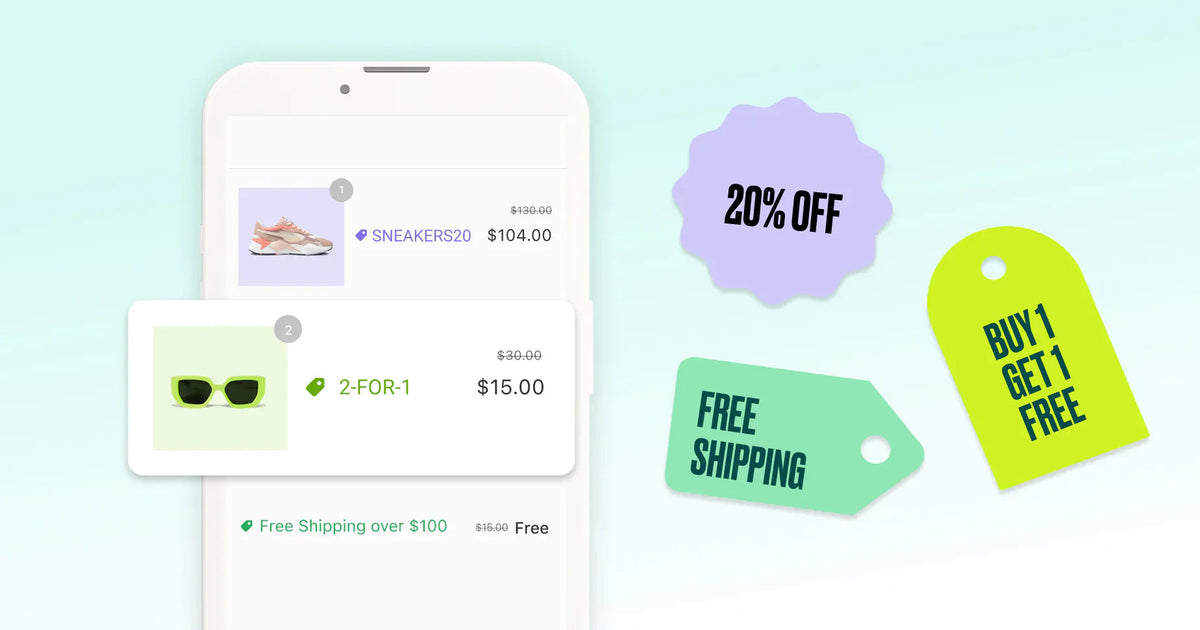
Product, BOGO, and free-shipping discounts only stack when every discount in the mix allows that pairing—one side on is not enough.
Open each relevant discount and review Combinations. Each discount must allow the pairing. Enabling combinations on only one side won’t make the discounts work together.
Enable only the combinations you actually want to fund. Before a campaign goes live, Shopify discount combinations covers which product, order, and shipping classes can stack on your plan and how to retest one cart.
If checkout says the discounts won’t combine, open every discount already on that cart—including automatic ones. If nobody typed a code and the automatic offer itself never appears, use Shopify automatic discounts.

Reproduce the same cart and checkout path (stop before payment) before you escalate to Support or an app.
4. Reproduce the failure before escalating
Use the same products, quantities, customer eligibility, and checkout path. Shopify lets you test discount combinations at checkout and stop before payment.
For a code marked as used, search Orders for the customer first. If no matching order exists, an unfinished checkout may be holding the code against its usage limit. How a shared code, one use per customer, and one code per recipient differ, including that hold, is in Shopify unique discount codes. Renaming the code—or flipping it off and on—won’t reset that history; that’s cargo-cult troubleshooting. Shopify suggests issuing a new code with the same conditions when needed. Shopify’s used-code troubleshooting
If the settings still don’t explain the failure, send Shopify Support or the relevant app developer the error, affected cart, time of failure, and reproduction steps. Keep customer details in private support channels.
Platform limits
Shopify Help, not the theme, sets the stacking ceiling: customers can use a maximum of five product or order discount codes and one shipping discount code on the same order. Combining more than one product discount on the same item requires Shopify Plus, and each discount still has to allow that pairing. Hitting the numeric cap does not make an ineligible mix valid. Combining discounts · Discount codes FAQ
- Per-order cap: 5 product or order codes + 1 shipping code.
- Same-item product stacking: Shopify Plus, plus Combinations on every discount in the mix.
Why is the discount-code field missing?
Check that you have an active discount code. Draft-order checkout links don’t allow customers to enter codes by default, and Shop Pay customers must sign in before the field appears. Apps that affect pricing or checkout can also change its visibility. Shopify’s field-visibility guidance
How can I test a code before a promotion?
Add eligible and excluded products to test carts, check the intended customer restrictions, and try the other discounts running during the campaign. Proceed to checkout, verify the result, and stop before payment. Shopify’s testing instructions
If failed-code visibility is an ongoing problem after the checks above, CouponRescue for Shopify Plus is the product path on StoreKitly for that job.