shopify / seo / collections
Shopify Collection SEO: The Category Page Is Not a Second Product Title
Shopify collection SEO, field by field: Title as the H1, where the description shows, the search listing, safe handle changes, and when a filter beats a page.
If you run a Shopify store, collection SEO is mostly five fields on one admin screen: the collection Title, the Description, and the Search engine listing trio of Page title, Meta description, and URL handle. There is also one decision that matters more than any of them: whether this group of products should be its own page at all, or just a filter on a bigger one.
Most Shopify collections SEO advice is a generic category-page checklist, and Shopify already publishes a general category page SEO guide. This page is the admin version: what each field does, when a group of products deserves a page, and the step people skip when they rename a handle. Field behavior comes from Shopify Help on collection settings and adding keywords for SEO.
Shopify collection SEO field map: (1) Title becomes the collection page’s H1, so name the category a shopper would recognize. (2) Description is body copy on the collection page; where it sits (above or below the product grid) depends on your theme’s collection template. (3) Search engine listing → Page title is the blue link in search results; Help recommends 60 characters or fewer and allows up to 70. (4) Meta description is the snippet under that link; Help recommends about 160 characters and says text past 320 may be cut off. (5) URL handle is the
/collections/part of the address. Shopify generates it when you create the collection, and if you change it, select the option to create a redirect from the old URL in the same save.
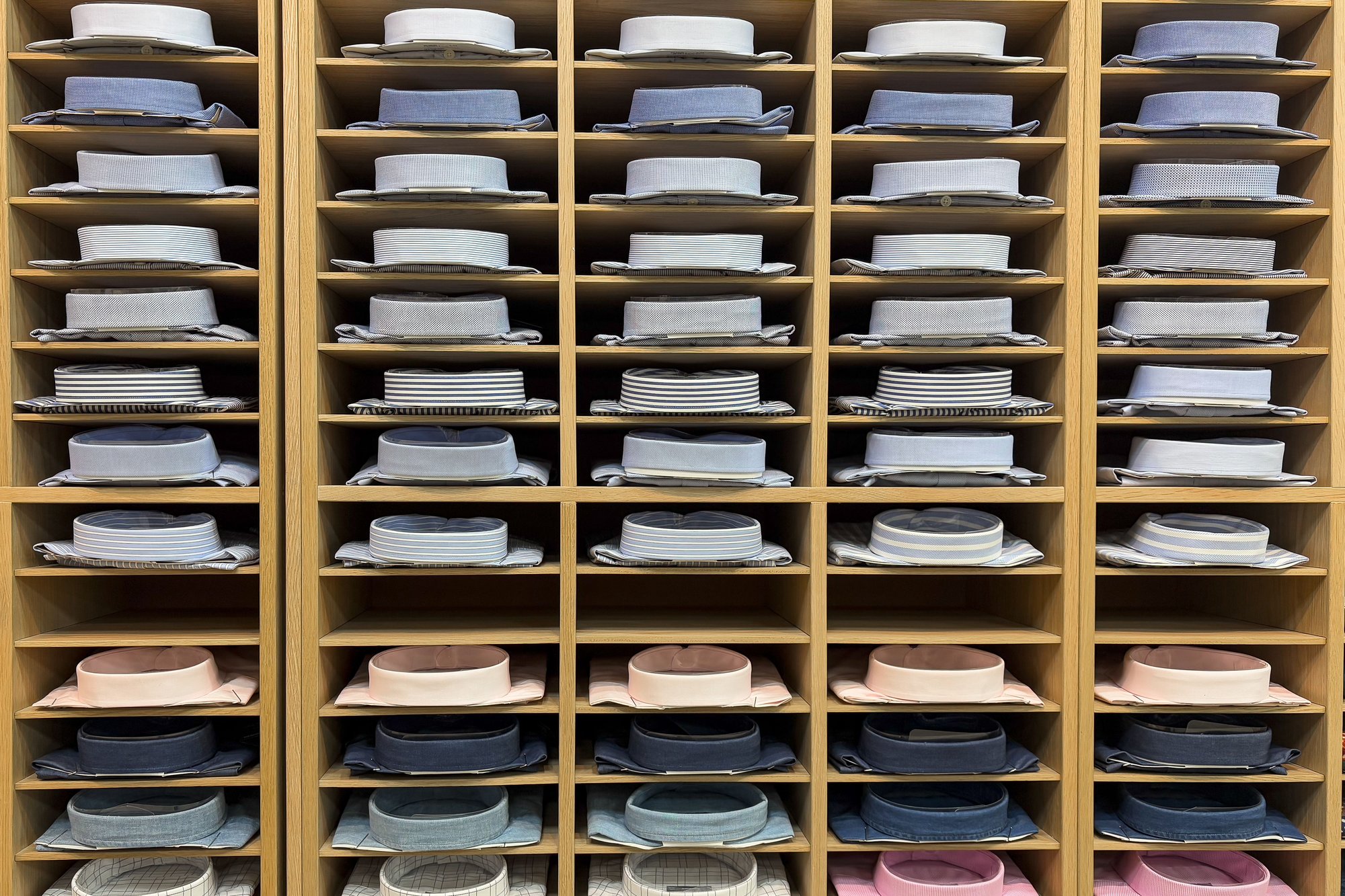
A collection is the shelf, not the shirt: one category shoppers recognize, with color and pattern sorted inside it. Name the shelf in the collection Title, let filters handle the variations, and save separate collections for groups shoppers actually search for by name.
The collection fields at a glance
The five fields, plus the featured image’s alt text:
| Field (Products → Collections) | Where it shows up | Write it for |
|---|---|---|
| Title | The collection page H1 | Shoppers who already landed on the page and need to know which shelf they are on |
| Description | Collection page body, inside whatever section your theme gives it | Shoppers choosing between products in this group |
| Search engine listing → Page title | The clickable title in search results | Searchers deciding which result to open |
| Search engine listing → Meta description | The snippet under that title (when the search engine uses it) | The same searchers, one line later |
| Search engine listing → URL handle | yourstore.com/collections/handle |
Stability. Links, bookmarks, and search results all point here |
| Featured image alt text | Image alt attribute | Screen readers, and search engines reading the image |
Help says that when you create a product page, collection page, webpage, or blog post, Shopify uses the title you enter to generate the H1. The Page title in Search engine listing is a separate field. If you leave it blank, Help says your theme falls back to the content title plus your shop name.
Collection Title: name the shelf, not the product
The product layer already has its own rules. A product Title names one item, and its attributes go into options and metafields. Shopify product title SEO covers that layer: the product Title, the product’s search listing, and the Shopping feed title. This page is the level above it. A collection Title names a kind of product, so it should be shorter and broader than any product inside it.
Compare two Titles for the same collection:
Men's Linen Shirts(18 characters)Men's Linen Shirt Relaxed Fit Breathable Summer Beach Button Down White Blue(76 characters)
The second one is a product-title habit applied to a shelf. Every word after “Shirt” is either a filter (fit, style, color) or marketing copy (breathable, summer, beach). As an H1 it reads like a keyword pile, and nobody wants it in a navigation menu.
Help’s guidance on H1s is to put your main keywords in the Title so the H1 includes them, in readable phrases. For a collection, the main keyword is usually the category name itself. If shoppers search “linen shirts” and your collection is called “The Riviera Edit,” the H1 is doing branding, not description. Keep the branded name if you like, but then the Page title and description have to carry the category words.
Search engine listing: the blue link can say more than the H1
Each collection has its own Search engine listing. Per Help, you open it from Products → Collections, pick the collection, and click the edit icon in the Search engine listing section. That is where you edit three things:
- Page title. Help’s title-tag guidance: unique, descriptive, important keywords near the beginning, and 60 characters or fewer because most search engines shorten longer titles. The field accepts up to 70.
- Meta description. Help recommends about 160 characters and suggests including relevant keywords and your store’s name. Help’s collection settings page says descriptions over 320 characters might get cut off.
- URL handle. Covered in its own section below, because changing it is the one edit here that can break something.
This is where the collection can say more than its H1. Using the example above:
- Title (H1):
Men's Linen Shirts - Page title:
Men's Linen Shirts: Relaxed and Slim Fits | Example Co(54 characters) - Meta description:
Men's linen shirts in relaxed and slim fits, sizes S to XXL. Filter by color and sleeve length, and read the fit notes before you choose.(137 characters)
Only promise what the page delivers. If the collection has no size XXL, or no filter for sleeve length, the snippet just wrote a small lie into search results.
Help adds that Google and other search engines can rewrite titles and descriptions, so the result may not match your fields word for word. To check what Shopify actually outputs, view the page source and find the <title> and <meta name="description"> tags. Edits can also take a couple of weeks to show in results, per Help.
Description: write for the spot your theme gives it
You edit the description on the collection itself (Products → Collections → the collection → description). Where shoppers see it depends on the theme.
Help’s templates page says the default collection template has a Collection banner section and a Product grid section, and that the specific settings depend on your theme’s developer and version. In Shopify’s Dawn theme, the Collection banner holds the H1 (the collection Title) and, when its Description setting is on, the description directly under it. The default Dawn collection template turns that setting on and places the banner before the grid. On a stock Dawn collection page, your description sits above the products. On another theme, open the theme editor and check which section of the default collection template holds the description.
That placement shapes what you should write. Help’s keyword page suggests every page should have at least 250 words of descriptive text. Put 250 words in a banner above the grid, and on a phone, shoppers scroll through a wall of text before they see a single shirt. There are two ways out:
- Keep the top short. Two or three sentences above the grid: what is in this collection, what is not, and the one choice shoppers usually need help with (“relaxed fit runs a size large”).
- Move the long copy below the grid, if your theme lets you. Some themes have a setting for it; others need a second section in the collection template. Help notes that a template edit applies to every collection using that template. If only five collections need a buying guide, create a separate collection template and assign it to those five under Theme template.
What a collection description is good for:
- Explaining the difference between groups inside the collection (relaxed vs slim fit, 100% linen vs blends).
- Linking to narrower collections and to a few key products.
- Answering the question that keeps showing up in support tickets.
What it is bad for: repeating the H1 three times, pasting the same paragraph across twenty collections, or copying supplier text. Help warns against manufacturer descriptions on products because other sites may already use them, and a copied collection blurb has the same problem.
If you add a featured image, set its alt text too. Per Help, open the collection, click Update under the image, then Edit image, and describe what the image shows.
Automated or manual, and when a group deserves its own page
Older guides describe two collection types, manual and smart (automated). Help now says a new collections model is replacing that split, and stores that have it were converted automatically.
How products get into a collection does not change its SEO. The Title, Description, and Search engine listing fields are the same either way. Conditions are a maintenance tool: they keep “Linen Shirts” full as you add products tagged linen and typed Shirt. Hand-picked collections suit pages like “Staff picks,” where no rule describes the selection.
The harder question is which groups get a page at all. Help’s own collection examples include “items in a certain size or color,” so Shopify allows it. Whether you should is a separate call:
| Make it a collection | Leave it as a filter |
|---|---|
| Shoppers search for the group by name, per your Search Console queries or keyword tool (“linen shirts,” “wedding guest dresses”) | Shoppers narrow by it after choosing a category (size, most colors) |
| You can write a Title, Page title, and description that differ from the parent collection | The only honest description would be the parent’s, with one word swapped |
| It has enough products to look like a shelf, not a shelf with two items on it | It would fill up and empty out as stock changes |
| You would link to it from a menu (Help: a published collection isn’t added to menus automatically) | Nobody would link to it except a filter sidebar |
Two Help facts push toward splitting in specific cases. Per Help on Search & Discovery filters, collections with more than 5,000 products don’t display filters at all, and Help suggests dividing a big collection like “Women fashion” into Tops, Jeans, and Boots. And in the new collections model, you can build a collection from specific variants, such as only the red ones. Help says the filters on that collection then show the price range, swatches, and options for only those variants.
Search & Discovery gives every store standard filters for Availability, Category, Price, Product type, Tags, and Vendor. Custom filters come from product options, metafields, and metaobjects, so any other attribute you want shoppers to filter by has to live in a properly typed field. Shopify metafields covers which metafield types can become filters.
Tag views are not collections. Help on menus says a menu link to a collection can be filtered with tags. Help on URL redirects says URLs like /collections/collection-name/tag-name count as valid paths, even if no product has that tag, so you can’t redirect them. Those tag views have no record of their own in admin, so there is nowhere to give one a separate Title, description, or Search engine listing. The sitemap lists the collection URL, not the tag view. If a tag view deserves search traffic, make it a real collection with its own fields.
Keep internal collections off the storefront. Help says a collection used only for an admin workflow, such as a tax override or a discount, can stay unpublished from all sales channels.
Changing a handle: create the redirect in the same save
Help says Shopify generates the URL handle automatically when you create a collection. You can edit it to match the collection title, but Help warns against editing it too often, or the collection might not show in search results.
When you do change it, the URL handle field in Search engine listing comes with an option to create a URL redirect from the previous handle. Help says that option sends people who click the old URL to the new one instead of a 404 “page not found” page. Select it before you save. If you skip it, you can still add a redirect later under Content → Menus → URL redirects, but every click on an old link in the meantime hits a 404.
Help’s URL redirects page adds the limits that cause surprises:
- Redirects work only from broken URLs. If the old address still loads a valid page, the redirect won’t fire.
- Seasonal collections can delete their own redirect. Help’s example: hide the fall collection, redirect
/collections/fallto/collections/summer, and the redirect works because the hidden collection returns a 404. If you set the fall collection back to visible, Help says the redirect is deleted automatically. You have to recreate it the next time you hide the collection. - Some paths can’t be redirected. These include
/collections/all,/collections/vendors,/collections/types, and the tag views above. - Removing a redirect isn’t instant for everyone. Help says browsers and search engines cache 301 redirects, so people who already followed one may keep being sent along until the cache expires.
Then check it: open the old URL in a private window and confirm you land on the new collection. A redirect catches old links, but it doesn’t edit them. Links you typed by hand into other collection descriptions, pages, or blog posts still point at the old URL until you update them.
FAQ
Is the collection Title the same as the SEO title?
No. The Title becomes the H1 on the collection page. The Page title under Search engine listing is the title tag shown as the link in search results. If you leave the Page title blank, Help says the theme uses the content title with your shop name.
Should the collection description go above or below the products?
Either can work. It depends on what your theme supports and how much you write. In Dawn’s default collection template, the description sits in the banner above the grid, so keep that part short. Longer buying-guide copy fits better below the grid, in a template you assign only to the collections that need it.
Do automated collections rank differently from manual ones?
Help doesn’t say they do. Both use the same Title, Description, and Search engine listing fields. Conditions decide which products are in the collection, not how search engines treat it.
Sources
- Shopify Help — Managing collection settings (checked 2026-10-08 Asia/Shanghai)
- Shopify Help — Adding keywords for SEO (checked 2026-10-08 Asia/Shanghai)
- Shopify Help — Collections (checked 2026-10-08 Asia/Shanghai)
- Shopify Help — Creating collections and adding products (checked 2026-10-08 Asia/Shanghai)
- Shopify Help — Understanding conditions for collections (checked 2026-10-08 Asia/Shanghai)
- Shopify Help — Legacy smart collections (checked 2026-10-08 Asia/Shanghai)
- Shopify Help — Legacy manual collections (checked 2026-10-08 Asia/Shanghai)
- Shopify Help — Editing collection details and layout (checked 2026-10-08 Asia/Shanghai)
- Shopify Help — Adding menu links for your collections (checked 2026-10-08 Asia/Shanghai)
- Shopify Help — Templates (checked 2026-10-08 Asia/Shanghai)
- Shopify Help — Creating and managing URL redirects (checked 2026-10-08 Asia/Shanghai)
- Shopify Help — Adding filters with Shopify Search & Discovery (checked 2026-10-08 Asia/Shanghai)
- Shopify Dawn theme source — Collection banner section (checked 2026-10-08 Asia/Shanghai)
- Shopify — Ecommerce category page SEO (checked 2026-10-08 Asia/Shanghai)